OPC UA® servers & clients overview
On the OPC UA® SERVERS & CLIENTS tab you create a connection to an OPC UA® server and scan this connection for assets. Or you register an OPC UA® application.
On the DISCOVERY tab you see applications that were announced by a discovery server and require your approval to be active. After your approval, the applications will be displayed on the OPC UA® SERVERS & CLIENTS tab.
On the REVERSE CONNECT tab you see the applications that were announced via reverse connect.

OPC UA® servers & clients page – areas and functions

| 1 | Button to add a server or client |
| 2 | Button to edit the tags |
| 3 | Button to distribute the new certificate to the corresponding devices |
| 4 | Button to delete the connection |
| 5 | Name of the application (the connection you created) |
| 6 | Connection type (currently only OPC UA® available) |
| 7 | IP address of the asset (OPC UA® server) |
| 8 | State of the connection |
| 9 | Remaining time during which the certificate is valid. |
| 10 | Number of assets assigned to the connection |
| 11 | Tags used for the connection |
Details
- To view details of a connection and to edit it, click on the respective application name.
Among other details, here you can see the Certificate details as well as the Certificate trust and revocation details.
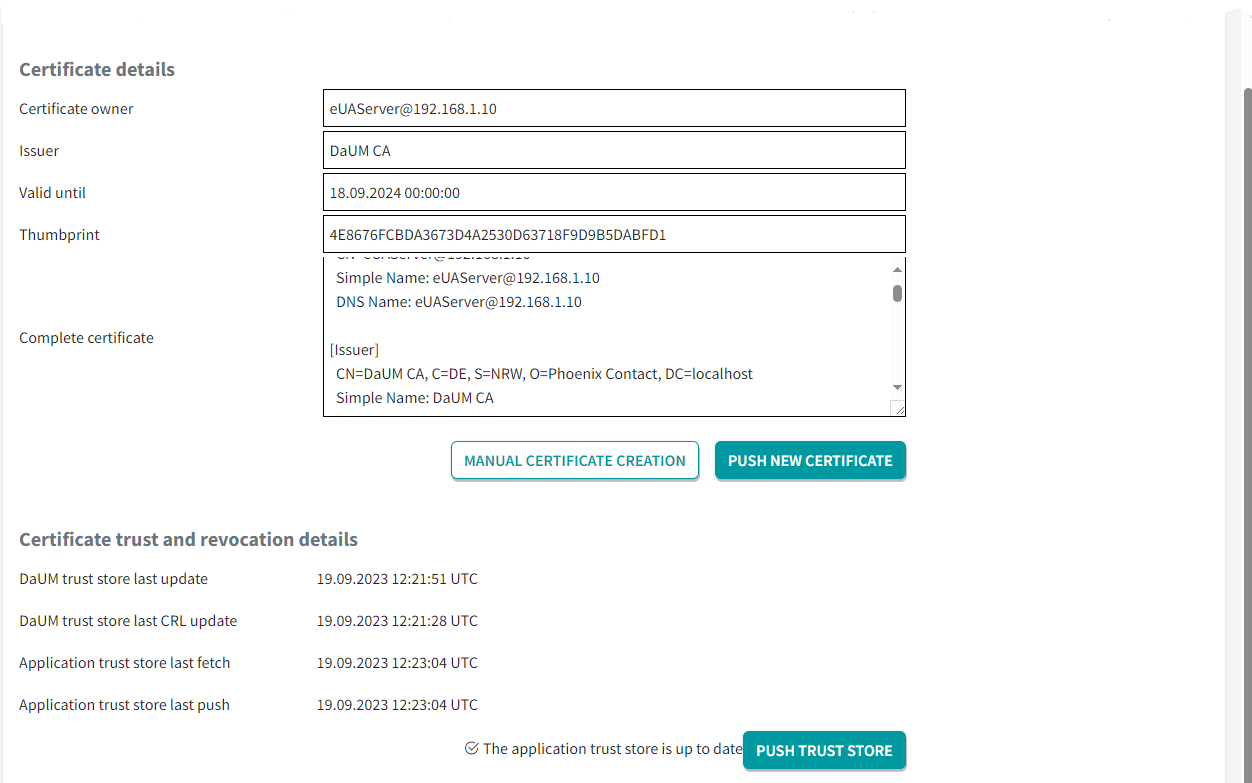
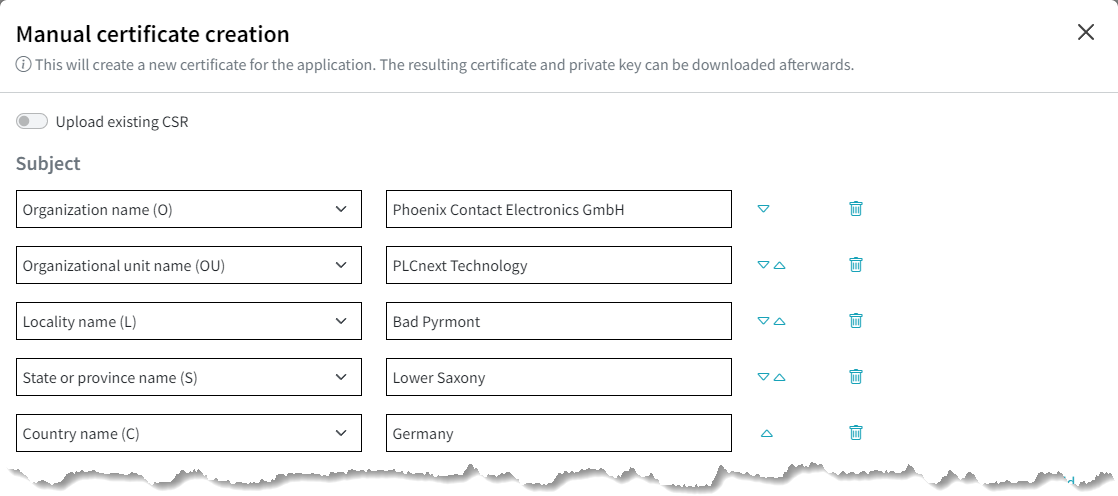
To create a new certificate, click the MANUAL CERTIFICATE CREATION button. Please note that you must have filled in the fields in the Operator area on the Global tab in the Administration area for them to appear in the following dialog (see Administration - Global tabfor details).
With the button you distribute the certificates to the corresponding devices.
With the the Device and Update Management transfers all necessary settings.
Import OPC UA applications from XML files
Available from DaUM version 2026.6
DaUM supports importing OPC UA® applications from XML-based target descriptions. As part of the plant description concept, target description files can be used to define OPC UA® applications and associated devices before startup. A target description file contains definitions for OPC UA® servers, OPC UA® clients, and OPC UA® discovery servers. During import, DaUM creates the corresponding application entries from the information provided in the XML file.
XML schema
The target description XML schema uses the following namespace:
http://www.phoenixcontact.com/daum/target-description
The root element of the XML document is:
<TargetDescription>
The root element contains one or more OpcUaApplication elements.
OPC UA® application definitions
The OpcUaApplication element acts as a container for OPC UA® application entries and can contain the following child elements:
- OpcUaServer
- OpcUaDiscoveryServer
- OpcUaClient
The child elements can appear in any order and may occur multiple times.
OPC UA® server definition
An OpcUaServer element describes an OPC UA® server application.
Optional attribute:
reverseConnectSupported elements:
- ApplicationUri
- DiscoveryUrl (required)
- Name
- ProductUri
- ServerCapabilities
OPC UA client definition
An OpcUaClient element describes an OPC UA® client application.
Optional attribute:
reverseConnectSupported elements
- ApplicationUri (required)
- Name (required)
- ProductUri (required)
OPC UA discovery server definition
An OpcUaDiscoveryServer element describes an OPC UA® discovery server.
Optional attribute:
reverseConnectSupported elements:
- ApplicationUri
- DiscoveryUrl (required)
- Name
- ProductUri
- ServerCapabilities
Server capabilities
The optional ServerCapabilities element contains a list of supported server capabilities.
Supported child element:
<ServerCapability>Example
For an example target description file, refer to the provided XML example.
Importing a target description
DaUM can import OPC UA® application definitions from a target description XML file during startup. To start DaUM with a target description, use the import-target-description program argument and specify the path to the XML file. If no path is specified, DaUM searches for a file named target-description.xml in the current working directory.
Command-line usage
dotnet PATH_TO_DaUMWeb.dll import-target-description <PATH_TO_XML_FILE>Local development environment:
dotnet run --framework net10.0 import-target-description <PATH_TO_XML_FILE>Docker usage
To import a target description when running DaUM in a Docker® container:
- Mount the target description XML file into the container.
- Add the import-target-description argument to the container command.
Example:
   services:
      app:
        image: ...
        working_dir: /app
        volumes:
          - ./target-description.xml:/app/target-description.xml

        command:
          - import-target-description
          - /app/target-description.xml
If no file path is specified, DaUM uses target-description.xml from the current working directory.